Current Grade Calculator – Calculate Your Course Grade

 Current Grade Calculator helps you estimate your overall course grade before the final exam. Add gradebook categories with weights and current scores, choose Normalize (recommended) or Strict 100% rule, and instantly see your current percentage. Includes a points-to-percent converter to apply scores from US-style point-based gradebooks.
| Category | Weight (0%) | Current score (%) | Actions |
|---|
- What This Current Grade Calculator Does
- How to Use the Calculator Step by Step
- Categories, Weights, and Scores Explained
- Normalize vs Strict 100% Mode
- Points to Percent: Using Point-Based Gradebooks
- How to Read the Results and Standing
- Tips and Common Grade Calculation Mistakes
- Questions and Answers
What This Current Grade Calculator Does
The Current Grade Calculator helps you calculate your current course grade before the final exam using weighted categories (homework, quizzes, midterm, projects, labs). Instead of guessing your standing, you enter the weights and current scores from your gradebook or syllabus, and the calculator computes your overall percentage instantly.
It is built for common US grading systems where each category contributes differently to the final grade. The calculator also highlights the biggest impact category, so you can see which part of your grade matters most right now.
| What You Enter | What You Get |
|---|---|
| Category weights and current scores | Your current overall grade percentage |
| Multiple gradebook categories | Weighted average calculated automatically |
| Different weight setups | Normalize or Strict 100% calculation |
| Your current performance | Standing indicator and biggest impact category |
How to Use the Calculator Step by Step
To calculate your current grade, copy the numbers from your syllabus or gradebook and fill in the table. If your course uses points instead of percentages, convert points to a percent first and apply it to the correct row.
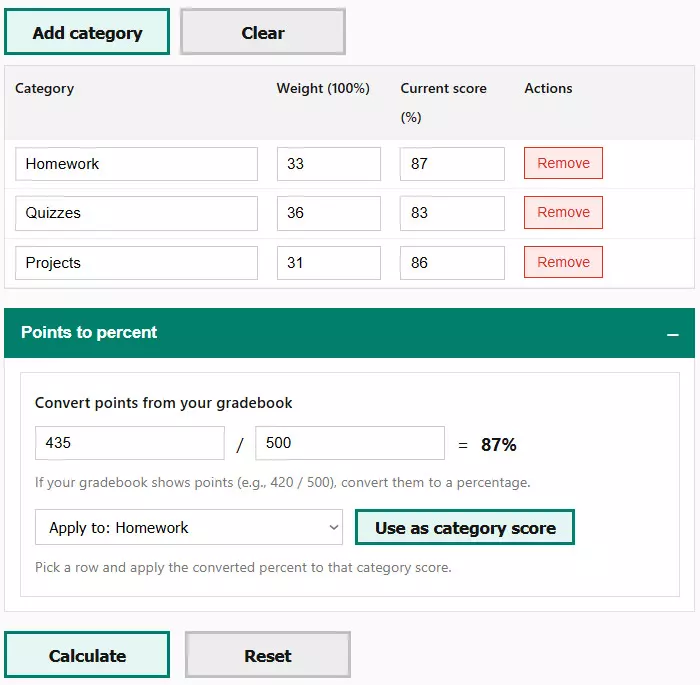
- Add categories.
Click Add category to create a row for each part of your grade (homework, quizzes, projects, midterm, labs). - Enter weights.
Type the weight for each category in percent (for example, 40, 30, 20). - Enter current scores.
Type your current percentage for each category (0–100). - Choose a rule.
Select Normalize (recommended) or Strict 100% if your weights must total 100%. - Click Calculate.
The results section shows your current grade, total weight, biggest impact category, and standing.
Categories, Weights, and Scores Explained
Each course grade is built from categories, and every category has a different influence depending on its weight. The calculator multiplies each category score by its weight and then combines them into one current grade percentage.
Higher-weight categories affect your grade much more than smaller ones. This is why improving a project or midterm score often changes your overall grade more than improving quizzes or participation.
| Category | Weight (%) | Why It Matters |
|---|---|---|
| Projects | 40 | Main contributor to the final grade |
| Homework | 30 | Consistent performance over time |
| Quizzes | 20 | Frequent but lower impact |
| Participation | 10 | Minor influence on the total |
The calculator also detects the biggest impact category, showing where improving your score will raise your overall grade the fastest.
Normalize vs Strict 100% Mode
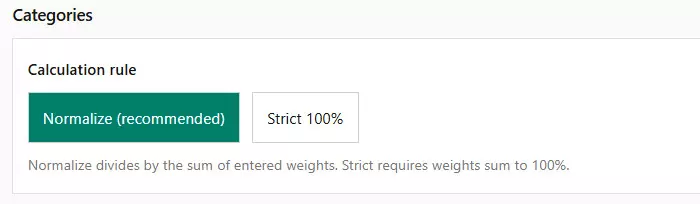
Different courses apply different grading rules. To match this, the calculator offers two calculation modes.
- Normalize (recommended).
The calculator divides by the total weight you entered. This mode is ideal when not all categories are graded yet or when weights do not sum to 100%. - Strict 100%.
Requires category weights to add up to exactly 100%. Use this only if your syllabus explicitly states this rule.
For most ongoing courses, Normalize mode gives the most accurate picture of your current standing.
Points to Percent: Using Point-Based Gradebooks
Many US gradebooks show grades as points earned out of total points instead of percentages. To avoid manual calculations, the calculator includes a built-in points-to-percent converter.
You can convert points once and apply the result directly to any category row. This keeps your inputs consistent and avoids rounding mistakes.
| Points Earned | Total Points | Converted Percentage |
|---|---|---|
| 420 | 500 | 84% |
| 275 | 300 | 91.7% |
| 180 | 250 | 72% |
This feature is especially useful for courses using Canvas, Blackboard, Moodle, or similar systems where category scores are often point-based.
How to Read the Results and Standing
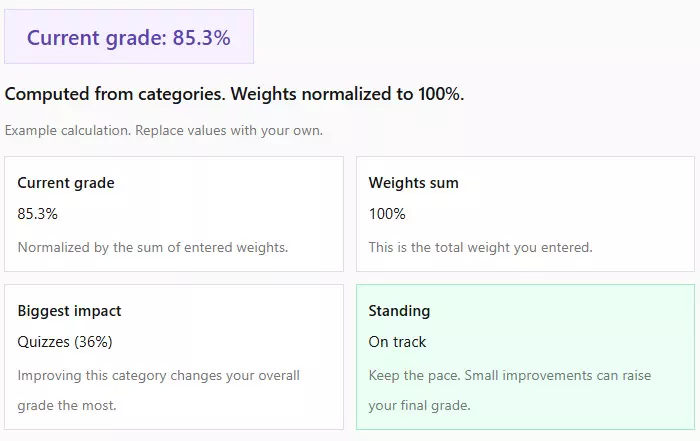
After clicking Calculate, the results section summarizes your academic position in a clear and practical way. It is designed to show not just a number, but what that number means.
The calculator displays:
- Your current overall grade percentage
- The total weight of entered categories
- The category with the biggest impact on your grade
- Your current standing based on performance level
The standing indicator helps you quickly understand whether you are in a strong position, on track, borderline, or at risk, so you can decide where to focus your effort next.
Tips and Common Grade Calculation Mistakes
Accurate grade calculation depends on entering the right data in the right way. Below are practical tips and common mistakes that often lead to incorrect results when students estimate their current grade.
- Do not include future or ungraded work.
Only enter scores for assignments, quizzes, or projects that have already been graded. Including future work will artificially inflate your current grade. - Always use the syllabus for weights.
Do not guess category weights. Even a small weight error in a high-impact category can significantly change your overall percentage. - Use Normalize mode when grades are incomplete.
If not all categories are fully graded yet, Normalize mode provides a more realistic picture of your standing than Strict 100%. - Avoid mixing points and percentages.
Convert point-based scores to percentages before applying them to categories. Mixing formats leads to incorrect weighted averages. - Check for rounding differences.
Some instructors round category scores or final grades differently. Treat calculator results as an estimate unless your syllabus specifies exact rounding rules. - Focus on the biggest impact category.
Improving a low-weight category has little effect. The calculator highlights which category will raise your grade the fastest if improved. - Recalculate after every major update.
Grades change throughout the term. Re-run the calculator after midterms, projects, or major assignments to keep your estimate accurate.
Following these tips ensures the calculator reflects your true academic standing and helps you make smarter decisions about where to invest your study time.
Questions and Answers
- What is a current grade calculator?
A current grade calculator estimates your overall course grade so far by combining your scores across graded categories (homework, quizzes, projects, midterms) using the weights from your syllabus or gradebook. - How do I calculate my current grade if my gradebook does not show an overall percent?
Enter each category name, its weight, and your current score for that category. The calculator will compute the weighted average and show your overall percentage. - What is the difference between Normalize and Strict 100% mode?
Normalize divides by the total weight you entered and works best when weights do not sum to 100% yet. Strict 100% requires weights to add up to exactly 100% and is best only when your syllabus demands that rule. - When should I use Normalize mode?
Use Normalize when not all categories are graded yet, when some categories are missing, or when your gradebook currently shows partial weighting. It gives a realistic snapshot of your standing based on what has been entered so far. - When should I use Strict 100% mode?
Use Strict 100% only if your course grading is fully defined and the category weights must total 100% at all times. If the calculator flags the sum, adjust weights to match your syllabus. - My weights do not add up to 100%. Is that a problem?
Not necessarily. Many courses have incomplete gradebooks mid-semester. In that case, use Normalize mode. If your syllabus says weights must total 100%, switch to Strict mode and fix the weights. - How do I convert points (earned/total) into a percentage?
Use the Points to Percent tool: enter earned points and total points, then apply the converted percentage to the correct category row. This avoids manual math and reduces rounding errors. - Should I include extra credit in the calculator?
Include extra credit only if it is already reflected in your category score or your gradebook percentage. If extra credit is listed separately, ask your instructor how it affects the category before adding it. - Why does my result differ from my instructor’s gradebook?
Differences usually come from rounding rules, dropped assignments, category minimums, grading curves, or hidden weights in the LMS. Use the calculator as an estimate unless you have the exact grading policy. - Which category should I focus on to raise my grade fastest?
Focus on the category with the highest weight and the lowest score. The calculator’s “Biggest impact” output helps you identify where improvement will change your overall grade the most. - Can I use this calculator to plan what I need on the final exam?
Yes. First calculate your current grade here, then use that percentage in a final exam grade calculator along with the final exam weight and your target course grade. - Is this calculator accurate for US college and high school courses?
Yes. It matches standard weighted grading systems used across US education. For full accuracy, enter weights from the syllabus and ensure category scores match your gradebook.