Reading Time Calculator – Precise Text Speed Estimate

 Online Reading Time Calculator for English texts. Paste your text or enter the word count, choose a reading speed or set custom WPM and get an exact reading time in minutes and seconds, plus sentence length statistics and a detailed breakdown by sentence.
- What this Reading Time Calculator does
- How the reading time is calculated
- Input modes: text vs word count
- Reading speed profiles and custom WPM
- Understanding your reading time results
- Sentence breakdown table and categories
- Tips for using this calculator in practice
- FAQ about the Reading Time Calculator
What this Reading Time Calculator does
The Reading Time Calculator helps you estimate how long it will take to read an English text at different speeds. You can paste your text or enter a ready word count, choose slow, average or fast reading speed, or set a custom WPM value for a very precise reading time estimate.
Instead of showing only a rough “about 3 minutes” result, this tool calculates time in minutes and seconds and also looks at your sentence length. This way you see not only how long reading will take, but also how dense or light the text feels for the reader.
Main features at a glance
When you use this reading time calculator, you get several useful blocks of information:
- Text size: total number of words, with a short hint about text length.
- Average sentence length: how many words a typical sentence contains.
- Reading time by speed: slow, average and fast profiles compared side by side.
- Difficulty hint: a short comment on how demanding the text is for readers.
- Detailed sentence table: optional breakdown with timing for each sentence.
This makes the calculator suitable for bloggers, teachers, students, content writers and anyone who wants to plan how much time a reader needs for a specific article, lesson or text passage.
How this tool stands out
Many online reading time tools only ask for a word count and return a single approximate number. This calculator goes further and lets you work with real text, sentence statistics and multiple speed profiles. It also supports a flexible custom speed option, so you can match the estimate to your own or your audience’s reading habits.
| Feature | Basic tools | This Reading Time Calculator |
|---|---|---|
| Input type | Word count only | Text or word count, your choice |
| Reading speeds | Single default speed | Slow, average, fast + custom WPM |
| Time format | Rough minutes only | Exact minutes and seconds |
| Sentence statistics | Usually not available | Average sentence length and clarity hints |
| Detailed view | No breakdown | Optional table with one row per sentence and estimated time |
Thanks to this combination of speed profiles, custom WPM and sentence-level analysis, the Reading Time Calculator becomes a practical tool not only for estimating reading time, but also for understanding how readers will experience your text.
How the reading time is calculated
The Reading Time Calculator follows a clear sequence of steps. You choose how to enter your data, set a reading speed, and the tool converts the number of words into an exact time in minutes and seconds. If you use Text mode, it also analyzes sentence length and structure.
Step 1: Choose how you want to input the text
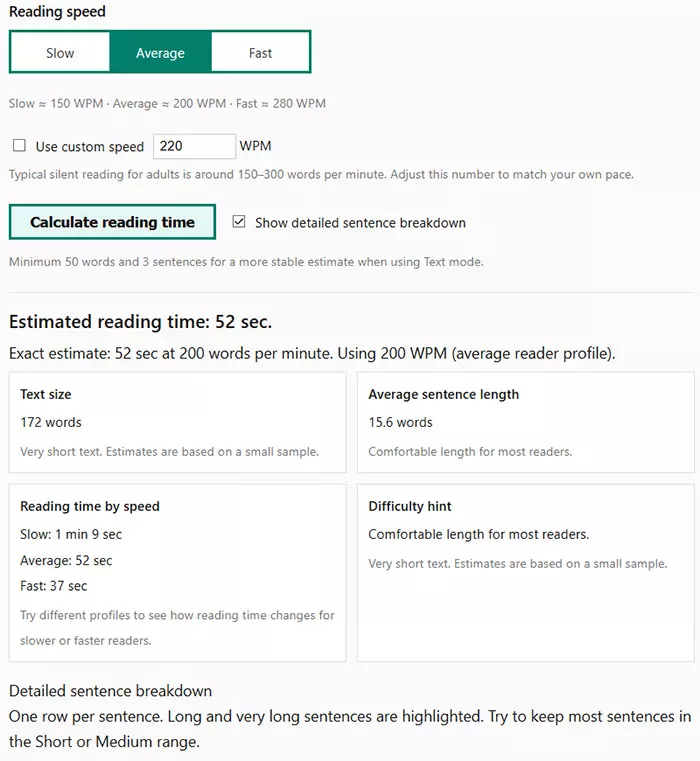
There are two input modes:
- Text mode: paste your English text into the large textarea. The calculator counts the words automatically.
- Word count mode: enter only the total number of words if you already know it from another tool or editor.
In Text mode, you get both reading time and sentence-level statistics. In word count mode, the Reading Time Calculator focuses on time only, without sentence breakdown.
Step 2: Count words and check limits
In Text mode, the calculator scans your text and counts words using English letters (and some extended characters and numbers). It ignores extra spaces and empty fragments to keep the word count accurate.
- If there is no real text, you see an error message.
- If the word count is less than 1, the tool asks you to check the input.
- If the total is greater than 50,000 words, the calculator shows a clear warning and stops.
This protects the tool from overload and ensures that your reading time estimate stays reliable and responsive.
Step 3: Pick a reading speed profile or custom WPM
Next, you select how fast the reader is:
- Slow: about 150 words per minute.
- Average: about 200 words per minute.
- Fast: about 280 words per minute.
If you turn on the Use custom speed option, you can type your own WPM value (from 50 to 600). This is useful when you know your personal reading pace or want to match a specific audience.
Step 4: Convert words to minutes and seconds
Once the total words and reading speed are known, the calculator converts them into time:
- First, it divides the total number of words by the chosen WPM.
- Then it multiplies the result by 60 to get the number of seconds.
- Finally, it turns the seconds into a clear format like 3 min 45 sec or 50 sec.
The Reading Time Calculator shows three main values at once — slow, average and fast — and a separate exact estimate based on the active speed profile or custom WPM.
Step 5: Analyze sentences (Text mode only)
If you used Text mode, the calculator also splits your text into sentences and counts how many words each sentence contains. It then:
- Calculates average sentence length in words.
- Assigns each sentence to a category (very short, short, medium, long, very long).
- Highlights long and very long sentences in the detailed table.
- Shows an estimated reading time for every single sentence at the active speed.
This extra layer of analysis makes the Reading Time Calculator more than just a time estimator: it becomes a tool for understanding how dense, fast or slow your text will feel to a real reader.
Input modes: text vs word count
The Reading Time Calculator gives you two different ways to provide input. This flexibility makes it useful both for writers who want to analyze a full text and for those who simply know the number of words and want a quick estimate.
1. Text mode — full analysis with sentence breakdown
In Text mode, you paste any English text into the main input field. The calculator automatically:
- counts all words,
- splits your text into sentences,
- measures sentence length,
- calculates average sentence length,
- estimates reading time at multiple speeds,
- offers a detailed table with per-sentence timing.
This mode is ideal when you want the fullest picture: exact time + structural clarity + how demanding the text feels for the reader.
Minimum recommended input for stable results:
- 50 words
- 3 sentences
If the text is too short or poorly punctuated, the calculator warns you and explains what needs to be added.
2. Word count mode — fast estimation without sentences
Word count mode is perfect when you already know the number of words — for example, from a Google Docs document, an LMS assignment, a manuscript, or another writing tool.
In this mode, you simply enter a positive number (1–50,000), and the calculator instantly computes:
- slow reading time,
- average reading time,
- fast reading time,
- a precise estimate based on active or custom WPM.
Sentence-level analysis is not available in this mode, because no text is provided. This keeps the calculation fast and lightweight.
3. When to use each mode
| Scenario | Recommended mode | Why |
|---|---|---|
| You want reading time + clarity analysis | Text mode | Shows reading time and full sentence breakdown |
| You only know the number of words | Word count mode | Fast calculation without needing full text |
| You want to compare text density | Text mode | Displays average sentence length and category labels |
| You plan reading sessions or pacing | Both | Reading time is accurate in either mode |
Both input modes are fully valid — your choice depends on whether you need structural insights or a fast estimate.
Reading speed profiles and custom WPM
Reading speed varies greatly from person to person, so the Reading Time Calculator includes several preset profiles and an optional custom WPM mode. This allows you to estimate reading time for different types of readers — from beginners to very fast readers — and match the result to your specific audience.
1. Reading speed presets
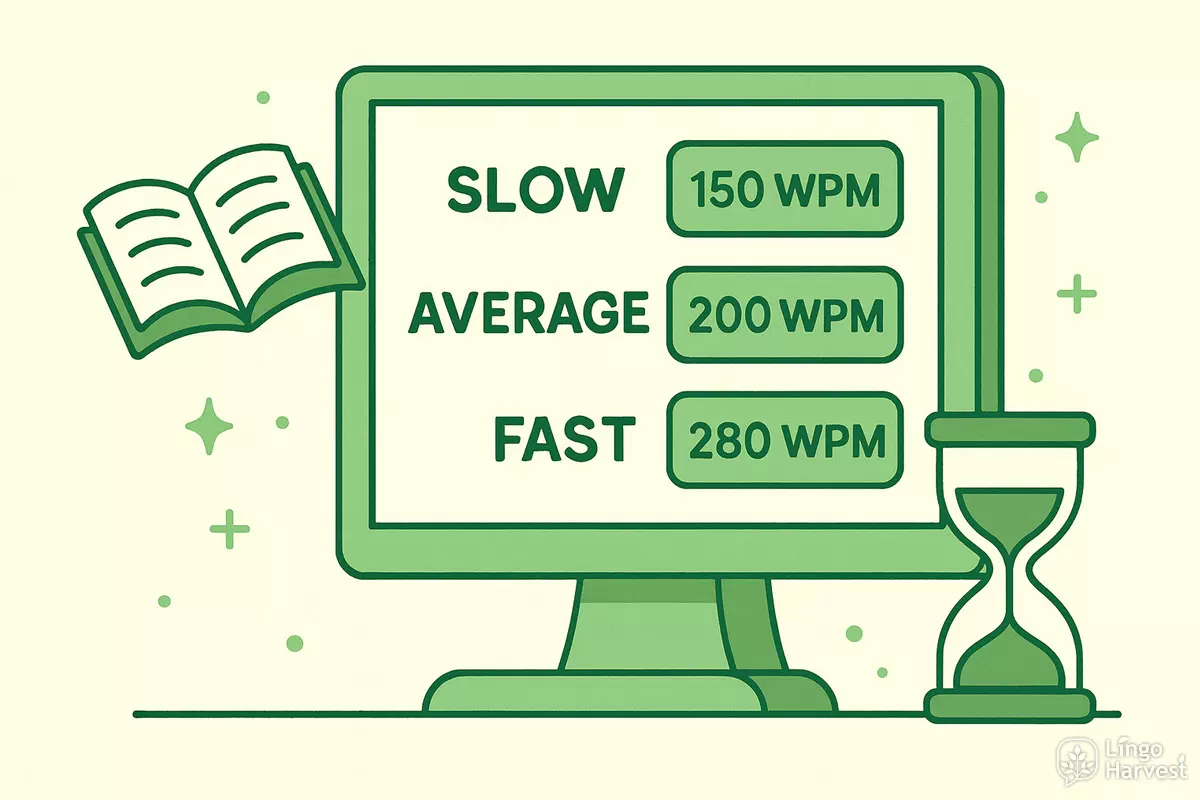
The calculator includes three standard reading speeds based on typical adult silent-reading research:
- Slow ≈ 150 WPM — careful readers, language learners, complex or technical texts.
- Average ≈ 200 WPM — the most common speed for general adult reading.
- Fast ≈ 280 WPM — experienced readers, simple texts, scanning familiar topics.
When you switch profiles, the calculator instantly recalculates all timing values — slow, average and fast — plus the exact result for the active profile.
2. Custom WPM option
If you activate Use custom speed, the WPM field becomes editable. You can enter any number from 50 to 600 WPM, making the tool highly flexible.
This mode is especially useful for:
- teachers adjusting difficulty for their students,
- learners tracking their own reading progress,
- bloggers estimating reading time for specific audiences,
- writers testing how long their draft takes to read aloud or silently.
Once custom WPM is active, the calculator prioritizes it over preset speeds and generates a new “exact estimate” message.
3. How reading speed affects the estimate
The difference between slow and fast readers can be dramatic. For example, a 1,200-word text may take:
- 8 minutes at 150 WPM,
- 6 minutes at 200 WPM,
- 4 minutes at 280 WPM.
The calculator presents these differences side by side so you can understand how much variation exists in real reading behavior.
| Speed | Suitable for | Typical scenario |
|---|---|---|
| 150 WPM | Beginner readers, dense texts | Reading complex explanations or academic passages |
| 200 WPM | General adult readers | Blog posts, articles, everyday reading |
| 280 WPM | Fast readers | Skimming familiar content or simple narratives |
| Custom (50–600 WPM) | Anyone | Matches personal pace or audience reading habits |
By combining preset profiles with a fully adjustable WPM field, this calculator produces accurate, personalized reading time estimates for any text length and difficulty level.
Understanding your reading time results
Once you click Calculate reading time, the tool instantly displays a set of key metrics. Each block helps you understand not only how long your text will take to read, but also how the structure and length of your sentences influence reading difficulty.
1. Text size and informational weight
The first metric shows the total number of words in your input. This number is crucial because it determines the base calculation for all timing estimates.
- Under 300 words: very short text, quick to read.
- 300–1500 words: typical length for blog posts and short articles.
- 1500–3000 words: long article or story.
- 3000+ words: extended texts that may require multiple reading sessions.
A short note under this block provides helpful context for interpreting the text length.
2. Average sentence length
If you used Text mode, the calculator also analyzes sentence length. Average sentence length strongly influences how easy or demanding a passage feels.
- Up to 12 words: very easy to read, simple and fast.
- 13–18 words: comfortable for most readers.
- 19–25 words: moderately dense, requires more focus.
- 26+ words: high complexity; many readers will slow down.
A short message under the metric explains how your average compares to typical readability patterns.
3. Reading time by speed
The calculator displays three timing values side-by-side:
- Slow (150 WPM)
- Average (200 WPM)
- Fast (280 WPM)
Each timing value is shown in a clear minutes + seconds format. This makes it easy to compare how long different types of readers will need to finish the text.
If you activated a custom WPM, the tool also provides:
- Exact estimate at your chosen speed
- A short note explaining how your speed compares to typical adult reading ranges
4. Difficulty hint
The difficulty hint summarizes how challenging your text may feel. It combines two factors:
- Average sentence length
- Total number of words
This metric can range from “very easy and quick to read” to “dense and complex.” It's a practical way to understand whether your text requires careful reading or can be consumed quickly.
5. Understanding the summary box
At the top of the results, you see a prominent sentence like:
Estimated reading time: 3 min 45 sec.
This summary is calculated using:
- your selected reading speed profile, or
- your custom WPM value if active.
This final value represents the most accurate reading-time estimate for your text based on your chosen settings.
Sentence breakdown table and categories
When you use Text mode, the Reading Time Calculator not only measures total reading time but also builds a detailed per-sentence breakdown. This feature shows how each sentence contributes to overall reading difficulty and pacing.
Longer sentences take more time to read, increase cognitive load, and may slow readers down. Shorter sentences read faster and feel lighter, but too many can make the text sound abrupt. The table helps you see this balance instantly.
1. What the sentence table shows
The detailed table includes several columns, giving you a precise view of each sentence:
- # — the sentence number in the text.
- Sentence (truncated) — the first part of the sentence for quick identification.
- Words — exact number of words in that sentence.
- Estimated time — how long it takes to read that sentence at the active WPM.
- Category — very short, short, medium, long or very long.
This table becomes especially valuable when you need to locate problem areas quickly, such as where the text becomes too dense.
2. Sentence length categories
Each sentence is assigned to one of these categories:
- Very short: 1–7 words
- Short: 8–14 words
- Medium: 15–22 words
- Long: 23–30 words
- Very long: 31+ words
Sentences highlighted in soft yellow or light red indicate potential clarity issues — long or very long structures that may slow readers down.
3. Why this breakdown matters
The per-sentence analysis helps you:
- see exactly which sentences increase reading time the most,
- identify dense paragraphs,
- improve text flow by adjusting sentence length,
- better understand how pacing affects reader experience.
Even texts with the same number of total words can feel completely different depending on how sentences are structured. The breakdown reveals this hidden structure.
4. Example of how the table helps
If your text contains 900 words but several sentences are 40+ words long, the reading time may feel much higher than expected. The table will highlight those sentences, allowing you to revise them for improved clarity and smoother pacing.
Below is a quick comparison of how sentence length affects estimated reading speed:
| Sentence length | Category | Reader experience | Impact on reading time |
|---|---|---|---|
| 1–7 words | Very short | Quick and clear | Minimal |
| 8–14 words | Short | Comfortable and smooth | Low |
| 15–22 words | Medium | Balanced and natural | Moderate |
| 23–30 words | Long | Dense, requires attention | High |
| 31+ words | Very long | Challenging to process | Very high |
Thanks to this breakdown, the Reading Time Calculator becomes a practical tool for analyzing pacing, clarity and structural readability — not just raw timing.
Tips for using this calculator in practice

The Reading Time Calculator is more than a timing tool — it’s a practical assistant for writers, students, teachers, bloggers and content creators. Here are several ways to use it effectively in real scenarios.
1. Improve clarity by balancing sentence length
If many sentences fall into the “long” or “very long” category, consider revising them. Long structures increase reading time and make your text feel heavier. Breaking them into two shorter sentences often improves flow immediately.
- Split overly complex sentences at natural idea boundaries.
- Use connectors like however, therefore, in addition.
- Move secondary details into separate sentences.
This simple adjustment can reduce reading time and raise comprehension at the same time.
2. Match reading time to your target audience
Different readers process text at different speeds. Use preset profiles or enter custom WPM to simulate:
- beginner-level readers (slower pace),
- general adult readers (average pace),
- advanced or fast readers (high pace).
If you create educational content, matching reading speed to your audience can dramatically improve engagement.
3. Estimate content length for blogs and articles
Many bloggers and SEO editors want to know how long their article “feels” to a reader. A 1200-word text may take 6 minutes at average speed — perfect for certain content formats.
Use this tool to plan article structure and improve user retention.
4. Evaluate reading workload for students
Teachers and learners can quickly estimate how long reading assignments will take. This helps in planning lessons, study sessions and pacing intensive learning materials.
5. Compare draft versions of the same text
You can check how revisions affect reading time. For example:
- A simplified version might reduce time by 15–20%.
- Removing redundant phrases shortens the text noticeably.
- Reorganizing sentences can lower cognitive load.
This makes the calculator useful for editing, rewriting and optimizing style.
6. Use the detailed table for micro-analysis
The sentence breakdown table isn’t just a statistic — it’s a diagnostic tool.
- Locate sentences that slow down the reader.
- Identify patterns — for example, repeated long sentences.
- Spot paragraphs that need restructuring.
This micro-level view helps polish the final version of your text.
7. Adjust content for mobile readers
Mobile users often read more slowly due to screen size and distractions. Use slower speed estimates for planning content that feels comfortable on smartphones.
8. Plan voiceover or audio recording
If you plan to record your text as audio, reading time estimates give you a reliable prediction of the final voiceover length. You can adjust your script accordingly.
Using these tips, the Reading Time Calculator becomes a versatile, everyday tool for improving readability, pacing and reader experience.
FAQ about the Reading Time Calculator
Below are the most common questions users have when working with the Reading Time Calculator. These short answers will help you understand how to get the most accurate and useful results.
1. How accurate is the reading time estimate?
The estimate is very accurate for silent reading because it is based on words per minute (WPM) — a well-studied metric. Your final accuracy depends on how closely the selected or custom speed matches the reader’s actual pace.
- Slow readers: around 150 WPM
- Average adults: around 200 WPM
- Fast readers: 250–300 WPM
Using custom WPM gives the highest precision.
2. Does punctuation affect the results?
Yes — sentence analysis requires proper punctuation. If your text lacks periods, question marks or exclamation marks, the calculator may detect fewer sentences or none at all. Reading time will still be correct, but the sentence breakdown will be incomplete.
3. Why is Text mode recommended for detailed analysis?
Text mode allows the calculator to measure sentence length, average sentence size, difficulty hints and per-sentence reading time. These insights are not possible in Word count mode.
If you need structure + timing → use Text mode. If you only need timing → use Word count mode.
4. Can this tool analyze very large texts?
Yes, up to 50,000 words. This is enough for large articles, full-length book chapters, long reports or extended study materials.
If your text is longer, consider splitting it into two sections.
5. Why do my results change when I switch speeds?
Reading speed presets (slow, average, fast) represent different types of readers. Faster readers finish the text sooner, while slower readers need more time. This variability helps you predict how different audiences will experience your content.
6. What does “difficulty hint” mean?
This hint combines:
- your average sentence length,
- your total number of words.
It gives a quick, intuitive overview of how demanding the text is. Short sentences + low word count → easy. Long sentences + high word count → challenging.
7. Does reading aloud take longer?
Yes. Reading aloud is slower because of articulation, breathing and natural pacing. A typical aloud-reading speed is 120–150 WPM, which is why voiceover scripts often take more time than expected.
If you're planning to record audio, use the custom WPM feature and set it around 130–150 WPM.
8. Can I use this calculator for non-English texts?
The tool is optimized for English word patterns. However, it often works reasonably well for other Latin-alphabet languages. For languages with different writing systems, results may vary.
9. Why does the sentence breakdown table hide by default on long texts?
To improve performance and page responsiveness, the table scrolls inside a container. If you want to see all sentences without scrolling, use the option Show full table on page.
This ensures smooth performance even with thousands of words.
With these answers, you now understand how to use the Reading Time Calculator effectively and interpret its results with confidence.