Error Density Meter — Check Writing Errors in English Text

 Error Density Meter analyzes your English text and estimates how “clean” it is. It counts confirmed errors (missing spaces, repeated words, missing apostrophes, punctuation issues) and highlights suspicious tokens via CEFR wordlists. See density per 100 words and a detailed sentence breakdown.
What this calculator does
Error Density Meter analyzes your English text and estimates how many problems it contains per 100 words. Instead of trying to fully “correct” the text, it focuses on measuring error concentration and highlighting risky areas that deserve attention.
The calculator separates issues into two levels:
- ERR — confirmed, high-confidence errors.
- CHECK — suspicious tokens or patterns that may require review.
This approach is useful when you want to:
- Estimate overall text quality quickly.
- Compare drafts by error density, not just raw error count.
- Audit long texts without reading every sentence in detail.
- Identify systemic problems (punctuation, spacing, apostrophes).
What the tool measures
| Metric | What it shows | Why it matters |
|---|---|---|
| Text size | Total word count | Density values are more meaningful on larger samples |
| Confirmed errors (ERR) | High-confidence writing mistakes | Directly impacts readability and correctness |
| Suspicious tokens (CHECK) | Dictionary or pattern-based warnings | Helps spot uncommon, misspelled, or risky words |
| Error density | Errors per 100 words | Allows fair comparison between texts of different length |
Unlike traditional grammar checkers, this calculator does not try to rewrite your text. It acts as a diagnostic meter, showing where problems cluster and how serious they are.
What it flags: ERR vs CHECK
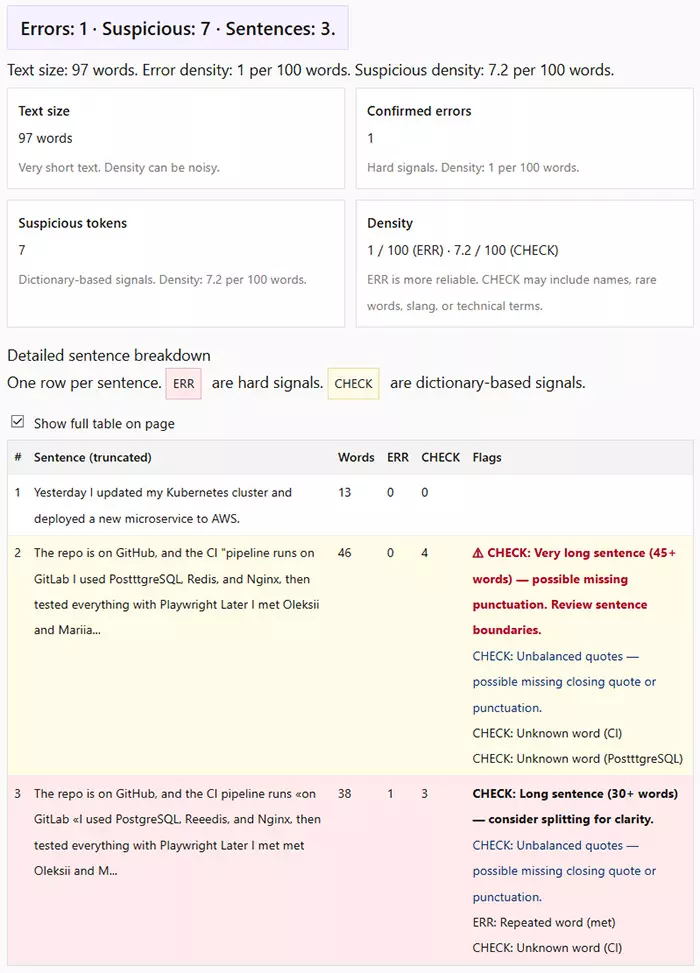
The core idea of the calculator is to clearly separate hard errors from soft warnings. This prevents overreacting to false positives while still drawing attention to risky patterns.
ERR — confirmed errors
ERR flags represent issues that are almost always wrong in standard English.
| ERR type | Example | Why it’s flagged |
|---|---|---|
| Missing apostrophe | dont, youre, ive | Clear grammatical error |
| Repeated word | the the, is is | Editing or typing mistake |
| Punctuation spacing | Hello ,world | Violates standard punctuation rules |
ERR counts are the most reliable indicator of actual writing problems and are used as the primary signal in the density score.
CHECK — suspicious signals
CHECK flags highlight elements that are potentially problematic but not guaranteed to be errors.
| CHECK type | Example | What it may indicate |
|---|---|---|
| Unknown word | nonstandardterm | Misspelling, name, slang, or technical term |
| Very long sentence | 45+ words | Possible missing punctuation or run-on sentence |
| Repeated punctuation | ??, !! | Informal or accidental emphasis |
| Unbalanced quotes | “This is broken | Missing closing quote or punctuation |
CHECK results should be reviewed manually. In technical texts, names, acronyms, or domain-specific terms may legitimately trigger these warnings.
Detection options and settings
The calculator lets you fine-tune what is considered an error and how strict the analysis should be. This is important because different texts — emails, essays, technical docs, or learner writing — need different levels of scrutiny.
Available detection options
| Option | What it does | When to enable |
|---|---|---|
| Use CEFR wordlists | Flags words not found in CEFR A1–C2 lists as CHECK | General writing, learner texts |
| Flag missing apostrophes | Detects forms like dont, youre, ive | Almost always recommended |
| Flag repeated words | Finds patterns like the the | Editing and proofreading |
| Flag punctuation spacing | Checks spaces before and after punctuation | Formal writing and publications |
| Warn on very long sentences | Flags sentences over 30 and 45 words | Clarity and readability checks |
| Flag unbalanced quotes | Detects mismatched “ ”, ‘ ’, « » | Quoted speech, dialogues, articles |
Show detailed sentence breakdown
If enabled, the calculator displays a sentence-by-sentence table. This is useful when you want to:
- See exactly where errors occur
- Understand why a sentence was flagged
- Fix problems directly in the source text
If you only need a high-level quality estimate, you can disable the detailed view and rely on the summary metrics.
How the density is calculated
Error Density Meter focuses on relative frequency, not absolute counts. This makes results comparable across texts of different lengths.
Step 1 — Sentence analysis
The text is split into sentences using punctuation markers (., !, ?, …). Each sentence is analyzed independently for errors and warnings.
Step 2 — Counting signals
- ERR — confirmed errors increase the hard error count.
- CHECK — suspicious patterns increase the warning count.
Both are counted separately to avoid mixing strong and weak signals.
Step 3 — Density per 100 words
The final metrics are normalized per 100 words:
- ERR density = (Total ERR ÷ Total words) × 100
- CHECK density = (Total CHECK ÷ Total words) × 100
| Text size | ERR count | ERR density | How to interpret |
|---|---|---|---|
| 200 words | 6 | 3.0 / 100 | Noticeable error rate |
| 500 words | 5 | 1.0 / 100 | Generally clean text |
| 1,000 words | 5 | 0.5 / 100 | High-quality writing |
Why ERR matters more than CHECK
ERR density is the primary quality indicator because these signals are highly reliable. CHECK density should be treated as a diagnostic aid — it highlights areas worth reviewing, not guaranteed mistakes.
This separation helps you avoid “noise” while still spotting patterns that weaken clarity or polish.
How to read the results
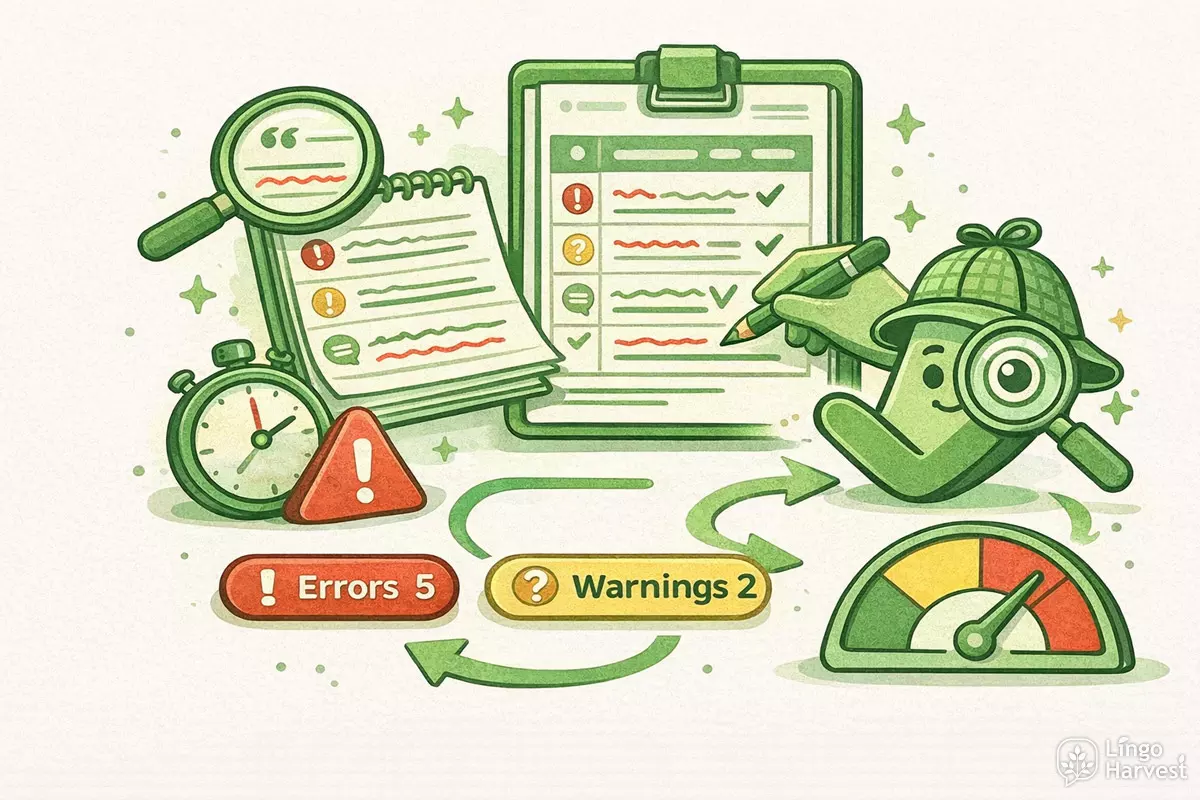
After analysis, the calculator shows a compact summary and (optionally) a detailed table. The summary answers one main question: How “clean” is this text per 100 words? The table answers a second one: Where exactly are the problems?
Summary headline
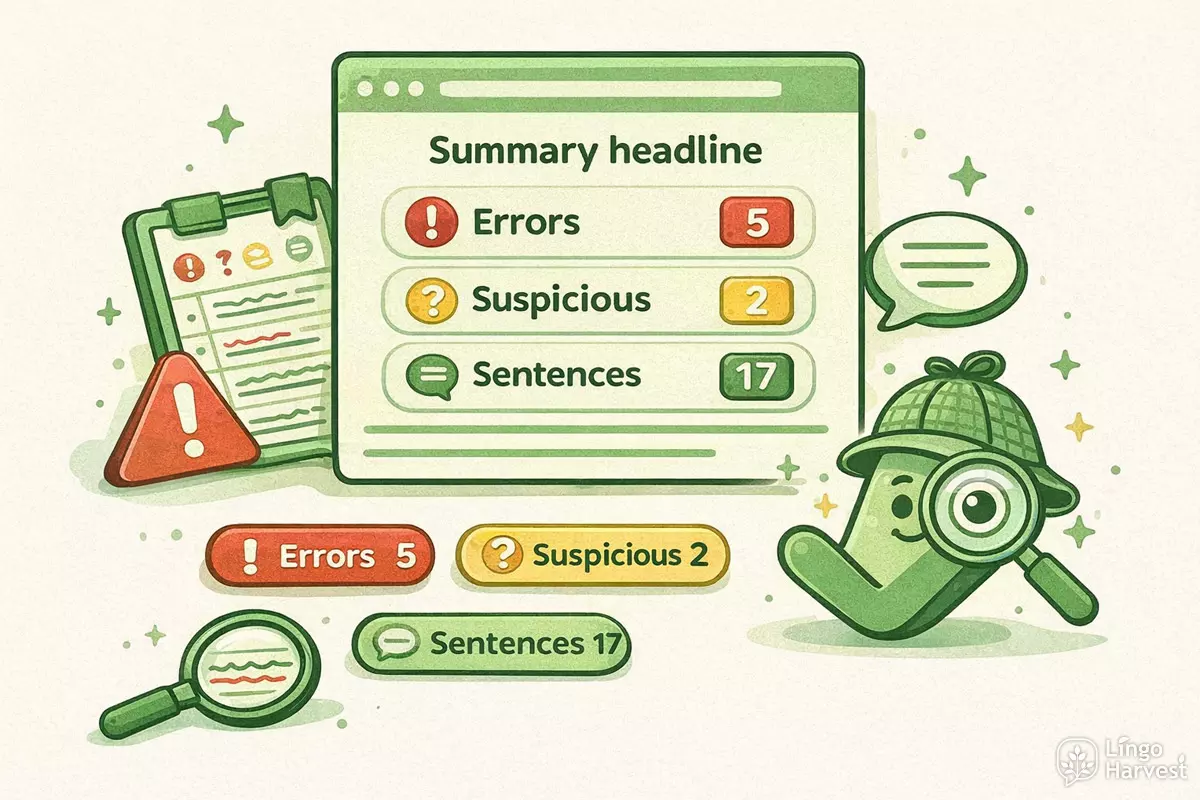
The headline aggregates your core counts:
- Errors — total ERR signals (confirmed errors)
- Suspicious — total CHECK signals (soft warnings)
- Sentences — how many sentences were detected
Under the headline, the calculator shows:
- Text size — total words
- Error density — ERR per 100 words
- Suspicious density — CHECK per 100 words
Interpreting density values
Density makes texts comparable. For example, a short paragraph with 4 ERR may look “bad”, but a long article with the same 4 ERR is usually fine.
| ERR density | Typical meaning | Practical recommendation |
|---|---|---|
| 0.0–0.5 / 100 | Very clean text | Minor polishing only |
| 0.6–1.5 / 100 | Mostly clean with some issues | Quick proofreading recommended |
| 1.6–3.0 / 100 | Noticeable error rate | Review punctuation, apostrophes, repeats |
| 3.1+ / 100 | High error concentration | Rewrite or edit sentence by sentence |
How to treat CHECK signals
CHECK is intentionally more “sensitive” and may include false positives. Common reasons:
- Proper names and places (e.g., brands, surnames)
- Technical vocabulary and abbreviations
- Slang, creative spelling, or informal style
- Hyphenated words and links (often excluded, but edge cases exist)
Rule of thumb: treat ERR as “must fix”, and treat CHECK as “review if it matters for your context”.
Warnings you may see
The tool can show a warning in two common cases:
- Small sample — very few sentences, so density can be unstable.
- Very long sentences (45+ words) — likely missing punctuation or run-on sentences.
Detailed sentence table
The detailed table helps you locate problems quickly. Each row corresponds to a single sentence, with counts for ERR and CHECK, plus a list of flags explaining what triggered the signals.
Table columns explained
| Column | What it shows | How to use it |
|---|---|---|
| # | Sentence number | Reference for editing and discussion |
| Sentence (truncated) | The sentence text, shortened if long | Scan quickly and open the source text to edit |
| Words | Word count per sentence | Spot long sentences and missing punctuation |
| ERR | Confirmed error count | Prioritize fixes |
| CHECK | Warning count | Review suspicious tokens and patterns |
| Flags | Human-readable explanations | Understand why the row is highlighted |
Row highlighting
- Red rows — at least one ERR found.
- Yellow rows — no ERR, but one or more CHECK signals.
- White rows — no issues detected in that sentence.
Best workflow for editing
- Sort mentally by priority: fix ERR rows first.
- Then review CHECK rows — confirm whether each warning is relevant.
- Pay special attention to long sentences and unbalanced quotes, as they often hide multiple issues.
- Re-run the analyzer after edits to verify that density improved.
If you want to copy or review the full list, enable Show full table on page to remove the scroll limit.
FAQ
1. What is the difference between ERR and CHECK?
ERR are high-confidence mistakes (hard signals) such as repeated words, missing apostrophes, or punctuation spacing errors. CHECK are softer warnings, often based on dictionary signals or suspicious patterns, and may include false positives.
2. Does the calculator fix my text automatically?
No. Error Density Meter does not rewrite or correct your text. It measures error concentration and highlights sentences that need review. The goal is to help you proofread faster, not replace editing.
3. Why does “Unknown word” appear for normal words?
The “Unknown word” flag comes from CEFR wordlists used as a soft signal. Some valid words may be missing from these lists, especially:
- Proper names and brands
- Technical vocabulary
- Rare words and niche terms
- Slang and creative spelling
4. Should I keep CEFR wordlists enabled?
For general writing and learner texts, yes — it helps spot unusual spellings and vocabulary problems. For technical documents, you may disable it to reduce noise and focus on confirmed errors.
5. Can it detect missing punctuation or run-on sentences?
Partly. The tool warns on very long sentences (30+ and 45+ words) because long lines often indicate missing sentence breaks. It does not fully parse grammar, but it helps you locate risky areas.
6. What quote types are checked?
The calculator checks several common quote styles: " ", « », “ ”, and ‘ ’. If opening and closing quotes do not match, it flags Unbalanced quotes as CHECK.
7. Does the calculator store or send my text anywhere?
No. The analysis runs locally in your browser. The text you paste is not saved or transmitted.