Dialogue vs Narrative Analyzer – Check Text Balance

 This analyzer shows how dialogue and narrative are distributed in your text. It highlights dialogue-heavy and description-heavy passages, helping writers adjust pacing, improve scene flow, and create a better balance between spoken lines and narration.
- What this analyzer does and who it is for
- How the tool detects dialogue vs narrative
- Input modes: paste text or enter word counts
- Dialogue detection rules: quotes and dash lines
- How to read the results: shares, words, and hints
- Pacing guide: what different dialogue percentages mean
- Detailed table: sentence types and highlights
- Editing tips to fix imbalance in a scene
- FAQ
What this analyzer does and who it is for
The Dialogue vs Narrative Analyzer is designed for writers who work with stories, scenes, and narrative texts where the balance between spoken dialogue and descriptive narration directly affects pacing, tone, and reader engagement.
Instead of guessing whether a scene feels too slow, too dense, or overly talkative, this tool provides clear, measurable data. It shows how much of your text is made up of dialogue and how much is narrative, expressed both in word counts and percentages.
The analyzer works especially well for:
- fiction writers editing short stories or novels,
- authors revising individual scenes or chapters,
- screenwriters adapting prose into dialogue-heavy formats,
- creative writing students learning pacing and structure.
By separating dialogue from narrative, the tool helps you understand how your text actually behaves when read, not just how it looks on the page.
Why dialogue vs narrative balance matters
Dialogue and narrative serve different purposes in storytelling:
- Dialogue drives action, reveals character voice, and increases reading speed.
- Narrative builds atmosphere, context, emotion, and internal reflection.
Too much narrative can slow pacing and overwhelm the reader with description. Too much dialogue can feel flat or disorienting, especially without enough grounding in setting and action.
This analyzer does not label one approach as “right” or “wrong”. Instead, it helps you see whether the balance you are using matches the genre, scene purpose, and reading experience you intend to create.
What problems this tool helps identify
- Scenes that are dialogue-heavy but lack context.
- Narrative blocks that slow pacing too much.
- Imbalanced chapters that feel uneven compared to others.
- Sections where dialogue could replace long exposition.
By making dialogue and narrative visible as measurable components, the analyzer gives you a solid foundation for editing decisions — before you start rewriting sentences line by line.
How the tool detects dialogue vs narrative
The Dialogue vs Narrative Analyzer works by scanning your text sentence by sentence and estimating which words belong to dialogue and which belong to narrative. It then totals the counts and calculates the percentage share of each type, giving you an instant view of balance and pacing.
The key idea is simple: dialogue is usually marked by quotation marks or dash-started lines, while everything else is treated as narrative. To make detection more flexible, the tool includes a checkbox that lets you decide whether dash lines should count as dialogue.
Step 1: Choose input mode
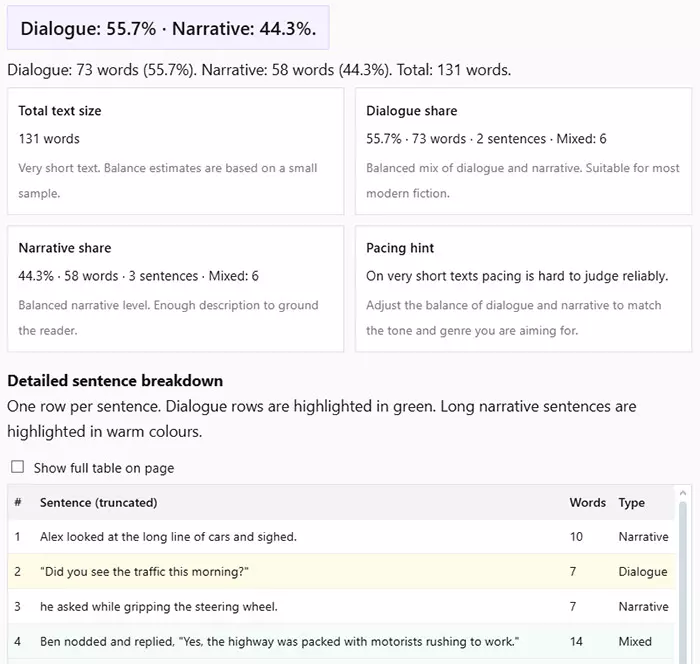
You can use the analyzer in two ways:
- Text mode — paste a scene, story fragment, or chapter excerpt. The tool detects dialogue automatically and can show a detailed breakdown table.
- Word count only — enter dialogue words and narrative words manually if you already counted them elsewhere. This mode is fast and skips sentence detection.
Step 2: Split the text into sentences
In Text mode, the analyzer first splits your input into sentences based on punctuation such as ., !, and ?. It also tries to handle edge cases where quotation marks appear at the end of a sentence (for example, a closing quote right after a period).
If the tool cannot detect clear sentences, it shows a warning asking you to check punctuation and sentence breaks.
Step 3: Detect dialogue markers
The analyzer recognizes dialogue using several common patterns:
- Quotes at the start of a sentence — for example: “I don’t agree.”
- Dialogue inside quotes — for example: He whispered, “Be careful.”
- Single-quoted dialogue — for example: ‘Don’t move.’
- Dash-started lines (optional) — for example: — Stop right there.
If dash detection is enabled, the tool treats lines starting with a dash (—, –, -) as dialogue. This is useful for texts written in a style where dialogue is formatted as dash lines instead of quotation marks.
Step 4: Count words inside and outside dialogue
For each sentence, the analyzer counts:
- Dialogue words — words that appear inside quotes or in dash dialogue lines.
- Narrative words — words outside quotes, including tags, actions, description, and internal thoughts.
Some sentences contain both types (for example, a dialogue line plus a speech tag). In these cases, the analyzer marks them as Mixed.
Step 5: Calculate shares and generate pacing feedback
After processing the whole input, the tool calculates:
- Total word count
- Dialogue share — words and percentage
- Narrative share — words and percentage
Based on dialogue percentage, the analyzer also produces:
- a short dialogue balance hint (what the ratio suggests about your scene),
- a narrative hint (how dominant description is),
- a pacing note (how fast or slow the scene may feel).
This feedback is not a strict rule set — it is a practical guide. The goal is to help you align your dialogue vs narrative balance with the tone, genre, and reader experience you want.
Input modes: paste text or enter word counts
The analyzer supports two input modes so you can work in the most convenient way. If you have the full text, use Text mode for the richest analysis. If you already counted words elsewhere, use Word count only mode for a quick balance check.
Text mode (recommended)
Text mode is the default and the most informative option. You paste a scene, chapter excerpt, or dialogue-rich fragment, and the tool automatically:
- detects sentences,
- identifies dialogue markers (quotes and optional dash lines),
- counts dialogue and narrative words,
- calculates dialogue and narrative share in percentages,
- generates pacing hints,
- builds a detailed sentence table if enabled.
This mode is ideal when you want to find where the balance shifts inside a scene, not just the overall ratio.
For more stable statistics, the tool recommends at least 10–15 sentences. Very short inputs can still work, but pacing feedback becomes less reliable because a few lines can distort the percentage heavily.
Word count only mode
Word count only mode is useful when you already know how many words belong to dialogue and how many to narrative. For example, you may have counted them in an editor or another workflow tool.
In this mode, you enter:
- Dialogue words
- Narrative words
The analyzer then calculates the same high-level outputs:
- Dialogue share (% and words)
- Narrative share (% and words)
- Total text size
- Pacing hints based on dialogue percentage
However, the detailed breakdown table is not available here because the tool does not have your full text and cannot detect sentence-level types.
Quick comparison: which mode should you use?
| Your goal | Best mode | Why it fits |
|---|---|---|
| See dialogue vs narrative ratio instantly | Word count only | Fastest input, no text needed |
| Detect dialogue automatically | Text mode | Counts words inside quotes and dash lines |
| Find dialogue-heavy or narrative-heavy lines | Text mode | Shows sentence-level breakdown with highlights |
| Compare multiple scenes quickly | Both | Use Text mode for deep dives, word counts for quick checks |
If you are writing or editing fiction, Text mode is usually the best choice because it reveals where imbalance happens inside the scene. Word count only mode is best for quick planning, outlining, or checking the overall ratio after a manual count.
Dialogue detection rules: quotes and dash lines
To measure dialogue vs narrative balance, the analyzer needs reliable rules for what counts as dialogue. Because writers use different formatting styles, the tool supports multiple common dialogue patterns — especially quotation marks and dash-started lines.
The goal is practical detection, not perfect literary parsing. Most of the time the tool will correctly identify dialogue, but it also gives you controls (like dash detection) to match your writing style.
1. Dialogue in quotation marks
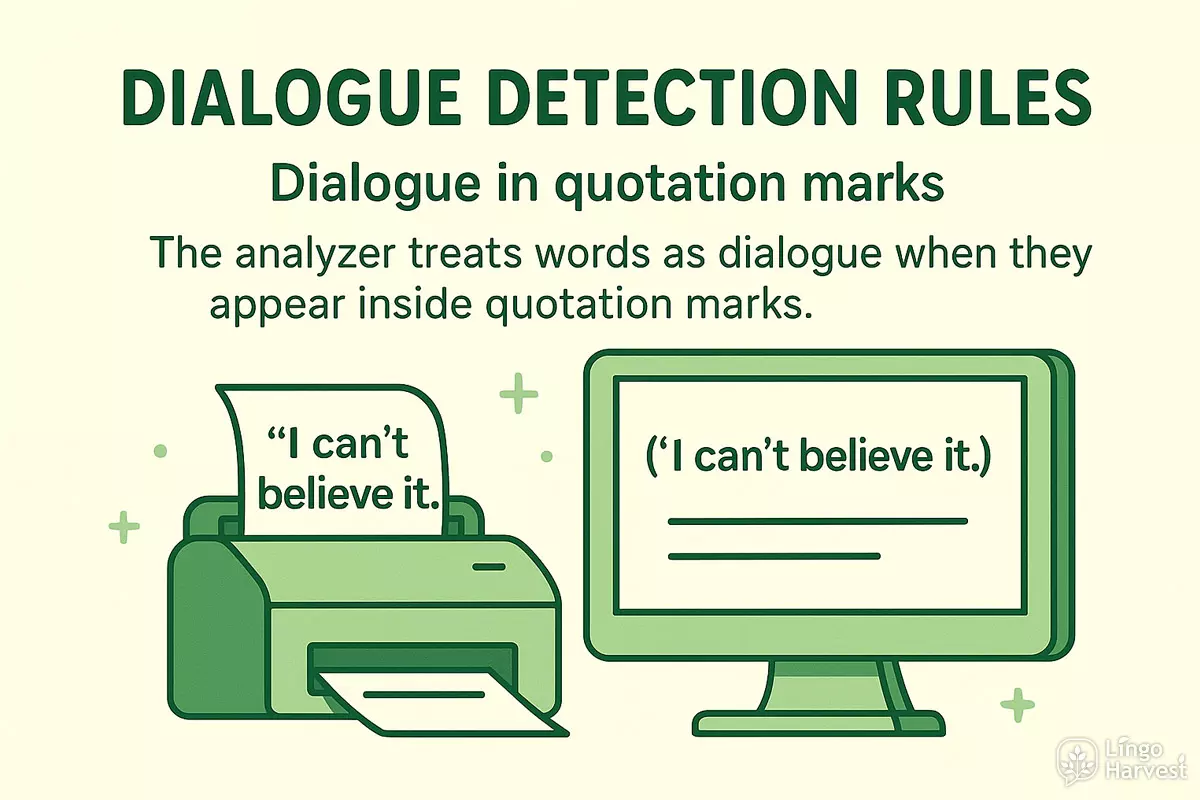
The analyzer treats words as dialogue when they appear inside quotation marks. It supports several quotation styles commonly seen in English texts:
- Double quotes: "I can’t believe it."
- Curly quotes: “I can’t believe it.”
- Angle quotes: «I can’t believe it.»
- Single quotes: ‘I can’t believe it.’
If a sentence includes quoted speech plus narrative outside quotes, the analyzer splits word counts accordingly and marks the sentence type as Mixed.
2. Dialogue at the start of a sentence
If a sentence begins with an opening quote, the tool treats it as a dialogue sentence. This is the most common dialogue structure in fiction and is usually detected very accurately.
Examples:
- “Don’t open the door.”
- "We should leave now."
- ‘I’m not ready.’
3. Dialogue inside a narrative sentence
Many authors embed dialogue inside narrative lines:
- He said, “It’s too late to turn back.”
- She whispered, "Stay quiet."
In these cases, the words inside quotes count as dialogue, while tags and description count as narrative. That is why the tool can produce Mixed sentence types.
4. Dash-started dialogue lines (optional)
Some writing styles format dialogue using dashes instead of quotation marks. If you enable the option Treat lines starting with a dash (—) as dialogue, the tool treats these as dialogue:
- — Stop right there.
- – I don’t know.
- - Don’t touch that.
This option is useful for writers influenced by formats where dash dialogue is common, or for texts that mix dialogue formatting styles.
The analyzer also attempts to handle a common special case: if a dash dialogue line contains a second dash (often used for a dialogue tag), the tool can split the line into:
- Dialogue part — the spoken words,
- Narrative part — the tag or description after the second dash.
This helps prevent inflated dialogue counts in lines like:
- — I agree — he said quietly.
5. What may be detected as narrative
Not everything that “sounds like dialogue” is formatted as dialogue. If a sentence does not contain clear dialogue markers, the tool counts it as narrative — even if it is written in a spoken tone.
This includes:
- internal monologue without quotes,
- reported speech without quotation marks,
- dialogue-like fragments written as plain sentences.
If your text uses unconventional dialogue formatting, you can still use the analyzer, but for best results you should apply consistent punctuation and dialogue markers.
How to read the results: shares, words, and hints
After you click Analyze balance, the tool outputs a clear summary and four main result blocks. Together they show how your dialogue vs narrative balance affects pacing and how a reader may experience the scene.
1. Summary line
At the top of the results you will see a compact summary like:
Dialogue: 42% · Narrative: 58%.
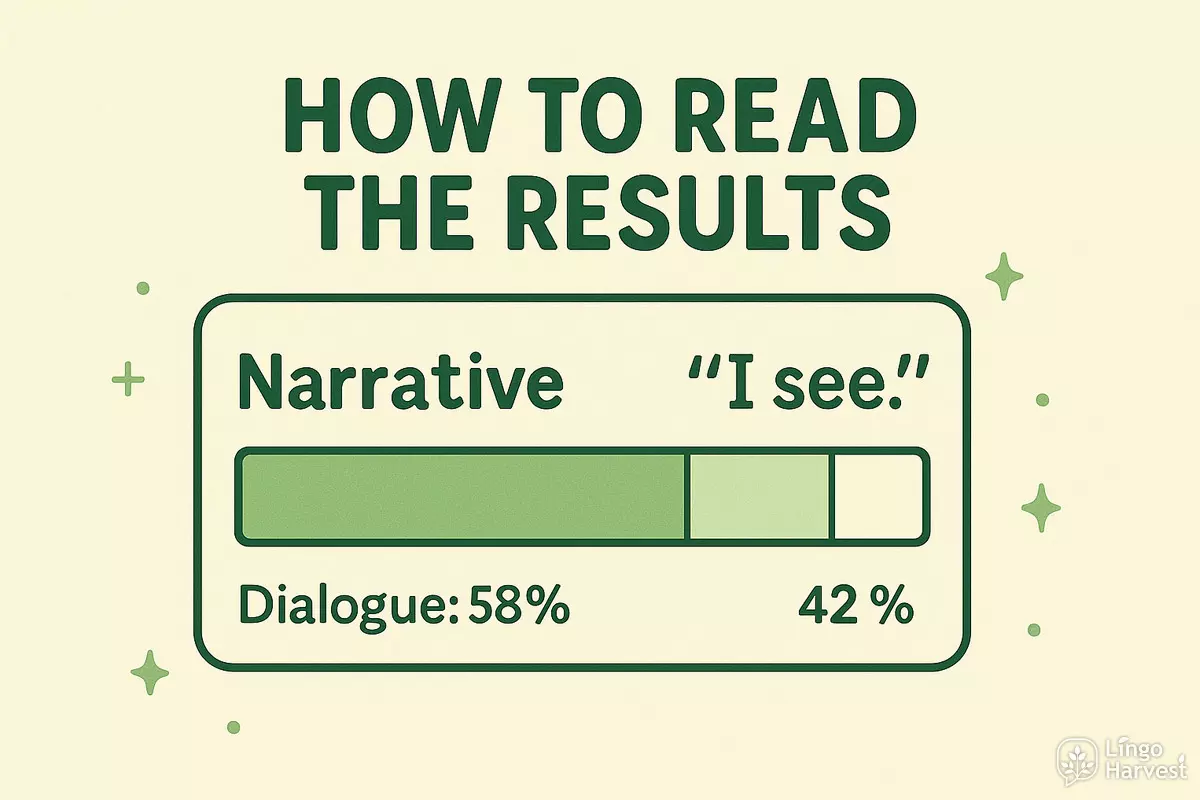
This is the fastest way to understand the overall ratio. It is especially useful when you compare multiple scenes or chapters.
2. Total text size
The Total text size block shows the total number of words analyzed. A short note explains how reliable the balance estimate is based on the size of the sample.
- Very short samples can be distorted by a few lines of dialogue.
- Longer scenes produce more stable dialogue vs narrative percentages.
3. Dialogue share
The Dialogue share block shows:
- dialogue percentage,
- dialogue word count,
- and in Text mode — how many dialogue sentences were detected.
It also displays a practical hint explaining what that percentage usually means for pacing and tone. For example, low dialogue share often creates a slower, more descriptive feel, while high dialogue share usually speeds up reading.
4. Narrative share
The Narrative share block shows the same structure for narrative:
- narrative percentage,
- narrative word count,
- and in Text mode — how many narrative sentences were detected.
The hint here focuses on whether description and exposition dominate the text and whether the scene might feel dense.
5. Pacing hint
The Pacing hint summarizes how the ratio of dialogue to narrative may influence reading speed and scene energy. It does not judge your writing — it helps you match the balance to your genre and the purpose of the scene.
For example:
- Dialogue-heavy scenes often feel fast and character-driven.
- Narrative-heavy scenes often feel slower and more atmospheric.
- A balanced scene often reads smoothly and feels modern and natural.
Where the detailed table fits
If you enabled Show detailed sentence breakdown, the tool also generates a sentence table. This table helps you locate exactly where the balance shifts — which lines are pure dialogue, pure narrative, or mixed.
In the next sections, we will look at what different dialogue percentages typically mean, and how to adjust the balance when a scene feels too slow or too talkative.
Pacing guide: what different dialogue percentages mean
Dialogue percentage is not a “quality score” — it is a pacing signal. Different genres and scene goals naturally prefer different dialogue vs narrative ratios. This section helps you interpret the numbers and decide whether your balance supports the reading experience you want.
In general:
- More dialogue increases speed, tension, and character voice.
- More narrative increases atmosphere, description, and internal depth.
A useful way to think about it is energy vs grounding: dialogue creates energy, narrative provides grounding.
Dialogue percentage ranges and typical effects
The analyzer’s hints are built around common percentage ranges. Use these ranges as a practical guide — not a strict rule.
| Dialogue share | How it feels | Common use cases | Potential risk |
|---|---|---|---|
| 0–10% | Slow, descriptive, reflective | Worldbuilding, internal monologue, exposition-heavy scenes | May feel heavy or static without breaks |
| 10–25% | Mostly narrative with occasional dialogue | Atmospheric fiction, literary style, description-first storytelling | Dialogue may feel too rare to “refresh” the reader |
| 25–40% | Narrative-driven, but with regular exchanges | Many traditional scenes in novels | Pacing may still feel slow if narrative sentences are long |
| 40–60% | Balanced and modern | Most contemporary fiction, strong scene flow | Usually safe, depends on sentence clarity |
| 60–75% | Dialogue-driven, fast-paced | Conflict scenes, arguments, quick interactions | May lack setting or action beats |
| 75–90% | Very dialogue-heavy, script-like | Rapid exchanges, comedic scenes, character banter | Readers may lose sense of place and movement |
| 90–100% | Almost pure dialogue | Transcripts, stage-like scenes, experimental formats | Needs narrative anchors to avoid confusion |
How to use this guide without over-correcting
A common mistake is trying to force every scene into a “perfect” percentage. Instead, use the dialogue ratio as a way to check whether the scene matches its purpose.
- If the scene is meant to be tense and fast, higher dialogue share often supports that.
- If the scene is meant to build atmosphere, narrative dominance can be correct.
- If the scene feels off, the ratio helps you locate the likely cause.
The best workflow is to compare the tool’s result with your own reading impression. If the scene feels too slow and the dialogue share is very low, adding dialogue or breaking narrative blocks is often a strong fix. If the scene feels confusing and the dialogue share is extremely high, adding small narrative anchors can improve clarity without slowing it down too much.
Detailed table: sentence types and highlights
The detailed table is the most practical part of this analyzer for editing. It shows your text line by line and labels each sentence as Dialogue, Narrative, or Mixed. This allows you to pinpoint where imbalance happens instead of relying only on a global percentage.
If you work with scenes, you often have local shifts — a paragraph of description, then a rapid exchange, then a long reflective block. The table makes these shifts visible instantly.
1. What each row represents
The table is built in Text mode and includes one row per detected sentence. Each row contains:
- # — order of the sentence in the analyzed text.
- Sentence (truncated) — a shortened preview so you can locate the line quickly.
- Words — total number of words in that sentence.
- Type — Dialogue, Narrative, or Mixed.
This is enough information to identify both structure (dialogue vs narrative) and density (long vs short lines).
2. Highlight colors and what they mean
The analyzer uses highlight colours to direct your attention:
- Dialogue rows are highlighted in green tones.
- Dialogue-only rows may appear in a distinct light tone to stand out.
- Long narrative sentences are highlighted in warm colours.
- Very long narrative sentences are highlighted more strongly.
This combination lets you see pacing patterns at a glance: where dialogue clusters, where narrative stretches, and where long narrative lines may slow the scene down.
3. Why “Mixed” sentences matter
Mixed sentences are common in fiction and often carry a lot of narrative weight:
- dialogue line + speech tag,
- dialogue + physical action,
- dialogue + internal thought.
Mixed sentences are not a problem — they are often a strength. They can keep dialogue flowing while anchoring the reader in action and emotion.
4. Using the table to find imbalance quickly
Here are fast patterns to watch for:
- Many warm-highlight rows in a row — narrative block is likely too dense or long.
- Long stretches of dialogue-only rows — the scene may need narrative beats to clarify setting and movement.
- Repeated very long narrative sentences — pacing will slow and clarity may drop.
If the table shows clusters of very long narrative sentences, the best fix is often to split them, or insert small dialogue exchanges to refresh the rhythm.
5. Full table mode
By default the table is displayed in a scroll container to keep the page fast and compact. If you enable Show full table on page, the table expands so you can scan everything without scrolling.
This is especially useful when you analyze longer scenes and want to spot transitions between dialogue sections and narrative passages.
Editing tips to fix imbalance in a scene
Once you know your dialogue vs narrative ratio, the next step is making targeted edits. The goal is not to chase a perfect percentage — it is to match the balance to the scene’s purpose and improve how it reads.
Below are practical editing techniques you can apply immediately, depending on what the analyzer reveals.
1. If dialogue share is too low
Low dialogue percentage often creates a slow, descriptive feel. This can be perfect for atmosphere, but it can also make scenes feel heavy or distant. If your scene is meant to feel active or character-driven, consider increasing dialogue presence.
- Replace exposition with a short exchange. Let characters reveal information naturally.
- Turn internal conclusions into spoken conflict. Dialogue can carry tension faster than narration.
- Add small “reaction lines”. A single line can break a long narrative block without changing the whole scene.
A small shift from 15% to 30% dialogue can significantly change pacing without sacrificing depth.
2. If dialogue share is too high
Very dialogue-heavy scenes can feel fast and lively, but they may also become confusing if the reader loses the sense of place, action, or emotion. If your analyzer result shows 75%+ dialogue, try adding narrative anchors.
- Insert beats between lines. Add small actions: gestures, pauses, movement.
- Ground the reader in setting. Use short, concrete description: location, time, physical details.
- Add emotional framing. A short inner reaction can strengthen meaning without slowing pacing.
These additions often reduce “script-like” feel while keeping the energy of the exchange.
3. Fix long narrative sentences first
Even if your dialogue percentage is healthy, very long narrative sentences can slow the scene and reduce clarity. Use the detailed table highlights as a guide and target the warm-colour narrative rows first.
- Split one long narrative sentence into two shorter ones.
- Move secondary details into a new sentence.
- Cut repeated phrases that add length without meaning.
This usually improves pacing more than adjusting dialogue ratio by a few percent.
4. Use “Mixed” sentences to keep balance natural
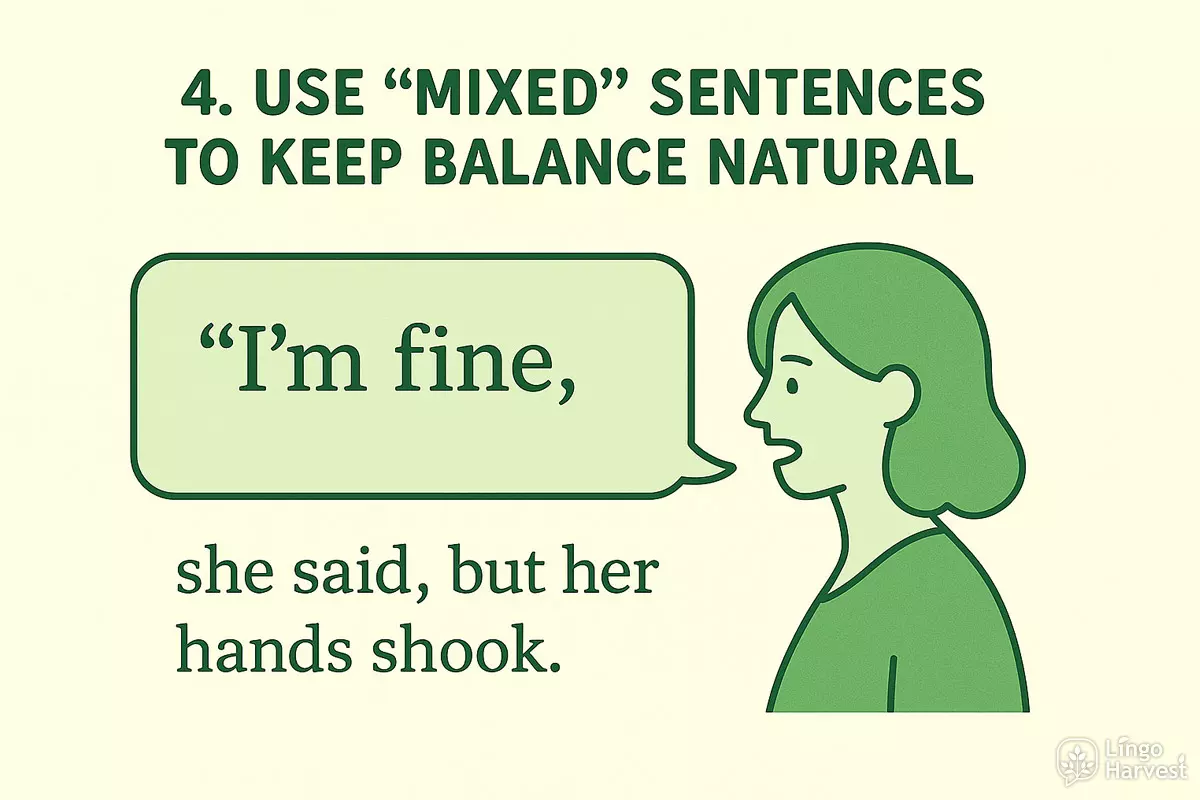
If your scene swings between pure dialogue blocks and pure narrative blocks, it may feel uneven. Mixed sentences help smooth transitions because they combine speech with grounding.
- “I’m fine,” she said, but her hands shook.
- “Don’t go,” he whispered, stepping into the doorway.
This technique keeps dialogue lively while maintaining narrative context.
5. Match balance to genre and scene goal
Different genres tolerate different ratios. A tense argument scene may be dialogue-heavy. A mystery reveal may need more narrative explanation. A romantic moment may benefit from a balanced mix.
Use the analyzer as a checkpoint: if the scene feels wrong, the ratio and table highlights usually show where to focus your edits first.
In the next section, we will look at real examples and how the analyzer interprets them.
Examples: how different balances change a scene
To understand how dialogue vs narrative balance affects reading experience, it helps to look at concrete examples. Below are typical patterns the analyzer detects and what they usually mean in practice.
Example 1: Narrative-heavy scene
A scene with very little dialogue often feels reflective, descriptive, or introspective. The analyzer might show something like:
- Dialogue: 12%
- Narrative: 88%
This balance is common in:
- worldbuilding passages,
- internal monologue,
- atmospheric or literary fiction.
The risk appears when long narrative sentences stack up. In the detailed table, you may see several warm-highlight rows in a row, indicating slowed pacing. A small amount of dialogue — even one or two lines — can refresh the rhythm.
Example 2: Balanced modern scene
A typical contemporary fiction scene often lands around:
- Dialogue: 45–55%
- Narrative: 45–55%
This balance usually produces smooth pacing and clear structure. Dialogue moves the scene forward, while narrative provides context, action, and emotional grounding.
In the table view, you’ll see:
- a mix of Dialogue and Mixed sentences,
- short to medium narrative sentences,
- few very long narrative rows.
This is often the safest range for scenes that combine action, character interaction, and setting.
Example 3: Dialogue-heavy scene
In fast-paced or conflict-driven scenes, the analyzer may report:
- Dialogue: 70–85%
- Narrative: 15–30%
This is common in:
- arguments and confrontations,
- comedic exchanges,
- rapid back-and-forth conversations.
The scene will feel fast and energetic. However, the table may show long stretches of Dialogue-only rows. If readers report confusion, adding short narrative beats between lines often fixes the issue without slowing the scene too much.
Example 4: Mixed sentences as balance anchors
A healthy sign in the table is the presence of many Mixed sentences. They indicate that dialogue is supported by action, emotion, or description.
For example:
- “We’re late,” she said, glancing at the clock.
- “I know,” he replied, already reaching for his coat.
Scenes with a good number of mixed sentences often feel natural and immersive, even if the overall dialogue percentage is high.
In the final section, we’ll answer common questions about edge cases, accuracy, and best practices when using the analyzer.
FAQ
1. How accurate is dialogue detection?
For typical fiction formatting, detection is highly reliable because it uses strong markers: quotation marks and dash-started lines (if enabled). Accuracy depends on how consistently your text uses punctuation. If dialogue is not marked with quotes or dashes, the tool will treat it as narrative.
2. What counts as “Mixed”?
A sentence is marked as Mixed when it contains both dialogue and narrative words, usually because of a dialogue tag or action beat. For example: “I’m fine,” she said, avoiding his eyes. The quoted part is dialogue, and the rest is narrative.
3. Should I enable dash dialogue detection?
Enable the dash option if your text formats dialogue as lines starting with a dash (—, –, -). If your text uses standard quotation marks for dialogue, you can leave the option on or off — it will mostly matter only when dash lines appear frequently.
4. Why do I see a punctuation warning about long sentences?
If the tool finds one or more “sentences” of 45+ words, it assumes the text may have weak punctuation or missing sentence breaks. In that case, the balance and sentence breakdown can be less reliable because sentence detection becomes noisy.
5. Can I use this tool on very short scenes?
Yes, but results may be unstable. A few dialogue lines can swing the percentage dramatically. For best feedback, analyze a scene with 10–15 sentences or more, especially if you want pacing guidance.
6. What is a “good” dialogue percentage?
There is no single perfect number. It depends on genre and scene purpose. Many modern scenes land in the 40–60% dialogue range, but narrative-heavy and dialogue-heavy scenes are both valid when intentional. Use the percentage as a pacing indicator, not a rule.
7. Does the tool work for scripts or screenplays?
It can, but screenplays often have formatting that is not based on quotes or dash lines. For script-style writing, the tool may treat many lines as narrative unless dialogue is clearly marked. It works best for prose fiction and dialogue-rich narrative text.
8. How should I use the results when editing?
Start with the detailed table:
- if narrative dominance feels heavy, add small dialogue beats or split long narrative sentences,
- if dialogue dominance feels confusing, add short narrative anchors (actions, setting, reactions),
- aim for a rhythm that matches the scene goal, not a specific percentage.